
📺 How to
Install IPTV on Amazon Fire TV (Easy Guide)
So, you want to unlock a world of entertainment on your Fire TV? 🌍 You are in the right place! Installing IPTV
on your Amazon Fire TV is easier than you think. It opens the door to thousands of channels, movies, and shows.
Let’s get you set up! 🚀
📋 What You Need Before We Start
- ✅ Internet Connection: Stable and fast (at least 20 Mbps recommended).
- ✅ Amazon Fire TV Device: Fire Stick, Fire TV Cube, or Fire TV Edition.
- ✅ IPTV Subscription: You need a provider (we don’t sell them, but you need one!).
- ✅ Downloader App: A free tool to help us install the IPTV player.
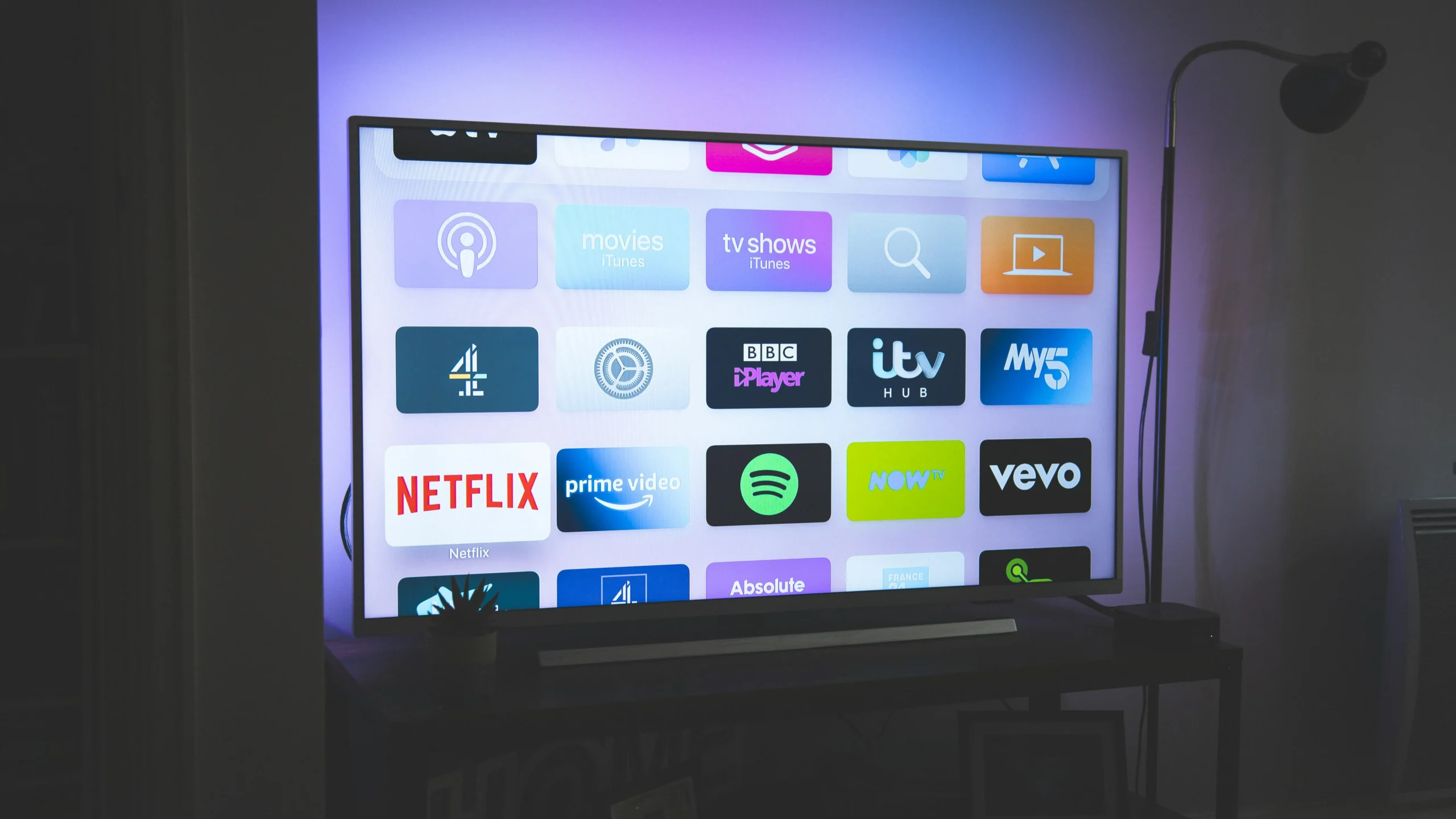
Unlock endless entertainment
🔥 1. Installing on Amazon Fire Stick
This is the main event! Follow these simple steps to get IPTV running on your Fire Stick.
- Get Downloader: Go to “Find” on your home screen, search for “Downloader”, and install it.
📥 - Enable Unknown Sources: Go to Settings > My Fire TV > Developer Options. Turn on “Install
Unknown Apps” for Downloader. (If you don’t see Developer Options, click “About” and click your device name
7 times!). 🛠️ - Open Downloader: Launch the app and enter the URL for your IPTV player (like IPTV Smarters
or TiviMate). 🌐 - Install: Click “Go”, wait for the download, and then click “Install”. Done! 🎉
📱 2. Setup for Android Devices
Want to watch on the go? Your Android phone or tablet is perfect for this.
Simply go to the Google Play Store and search for an IPTV player like “IPTV Smarters Pro” or “TiviMate”. Install
it, enter your subscription details, and you are good to go! 🏃♂️
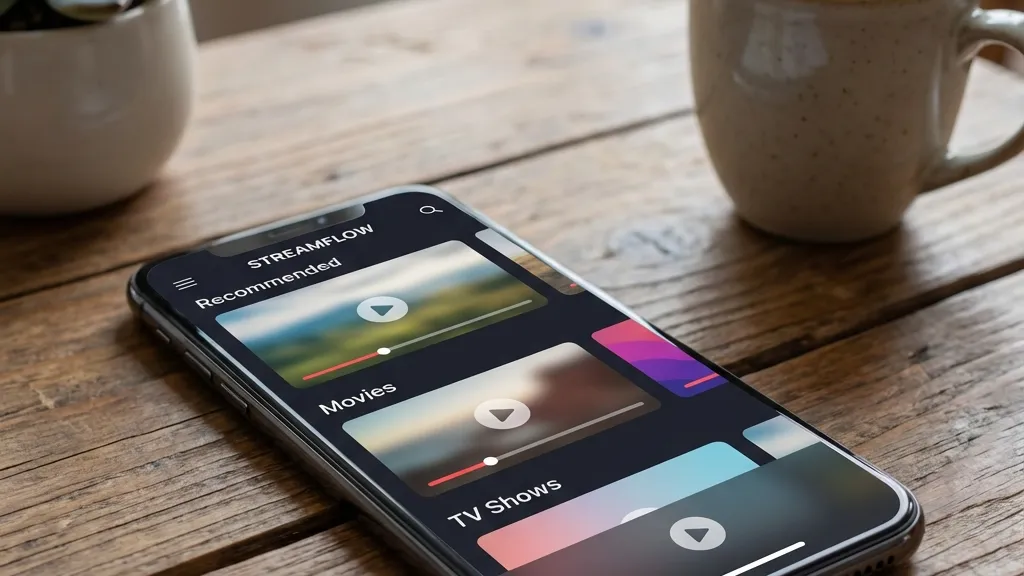
Watch anywhere, anytime
🍎 3. Setup for iOS (iPhone/iPad)
Apple users, we didn’t forget you!
Download “GSE Smart IPTV” or “IPTV Smarters” from the App Store. These apps work smoothly on iOS and let you
carry your TV in your pocket. 🍏
💻 4. Setup for Windows PC
Prefer a bigger screen but not a TV?
You can use VLC Media Player or the Windows version of IPTV Smarters. Just open the app, input your M3U URL, and
enjoy streaming on your laptop or desktop. 🖥️
💡 Tips & Tricks for Best Experience
- 🚀 Use a VPN: Protect your privacy and avoid buffering from ISP throttling.
- 🧹 Clear Cache: Regularly clear the cache of your IPTV app to keep it fast.
- 📶 Wired Connection: If possible, use an Ethernet adapter for your Fire Stick for better
stability.
✨ Key Features to Look For
- 📺 EPG (TV Guide): See what’s playing now and next.
- ⏮️ Catch-Up: Watch shows you missed up to 7 days ago.
- 🎬 VOD (Video on Demand): Access a library of movies and series.
📊 Device Compatibility Table
🔧 Troubleshooting Common Issues
Buffering?
Check your internet speed and try restarting your router. A VPN often
helps!
App Crashing?
Clear the app data or reinstall the application. Ensure your Fire Stick
software is up to date.
👨💻 Expert
Review
“Installing IPTV on a Fire Stick transforms it into a powerhouse. It’s the most cost-effective way to get
premium entertainment. Just make sure you use a reliable player like TiviMate for the best experience.”
📞 Need More Help?
If you are stuck, check out these helpful resources:
👉 smarters-pro.net — Great
guides for Smarters Pro
👉 trevixplay.com/ — Our
main hub